


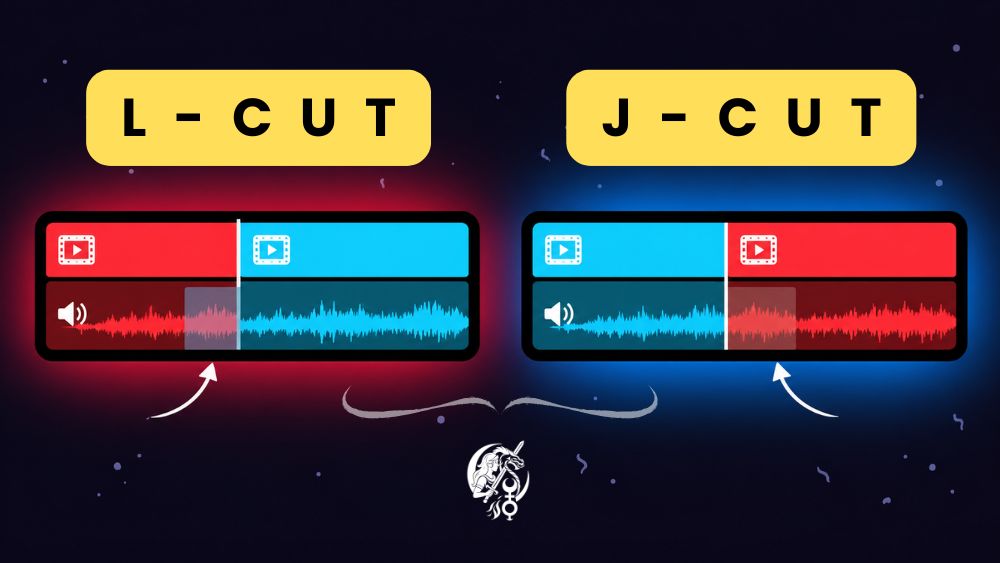
When you edit a video, the first instinct is to cut picture and sound at the same point. The result works, but you can feel every cut. The L-cut and J-cut fix this with one simple idea: the sound doesn't change at the same moment as the picture.
The idea in two sentences
In a J-cut, you hear the next shot's sound before you see its picture. In an L-cut, it's the other way round: the previous shot's sound carries on after the picture has already changed. The names come from the shape the video and audio tracks take on your editor's timeline: a J or a letter L lying on its side.
An example with a dialogue
Take two people talking. With no offset, the picture jumps from one to the other on every line, and the rhythm turns mechanical. With an L-cut, you keep the first person's voice while the picture already shows the second person's face, listening. With a J-cut, you hear the second person start to answer while the picture still shows the first. Either way, the viewer follows the conversation without noticing the cut.
How to do it in editing software
The move is the same in DaVinci Resolve, Premiere Pro or CapCut. I start with two shots cut cleanly, picture and sound lined up. Then I separate the audio from the video: in Resolve I turn off linked selection, in Premiere I unlink the two tracks. All that's left is to drag the edge of the audio, earlier for a J-cut, later for an L-cut, anywhere from a few tenths of a second to a second or two depending on the scene.
Add a short audio fade where the offset happens. Without it, the two sound environments clash and the cut becomes audible again.
When to use it, when to skip it
These two cuts work best for dialogue, interviews and scenes where a voice-over runs over the images. They also help move from one place to another: you hear the street before you see the street. On fast action or a sudden surprise, a hard cut is still stronger. An L-cut or J-cut only gets noticed when it's badly placed, so put it where it really helps the story.
Try it on your next edit
Open a video you've already edited, pick a dialogue passage and shift the sound by half a second. Watch it twice, with and without the offset: the difference shows right away. If you have other editing techniques to suggest, leave me a comment.

0 Comments