


Windows sleep mode problems
Windows 10 sleep mode is a feature that essentially allows your computer to rest and consume as little energy as possible during periods of inactivity.
In many cases, sleep mode can be a source of problems and system bugs.
Although these are minor issues, they can eventually deteriorate your battery and cause some damage, not to mention the inconvenience they create.
In this article, we will present the various issues related to Windows 10 sleep mode (or any other version of Windows) along with the appropriate solutions for each one.
Before we begin, you should know that there are two sleep modes:
- Normal sleep mode
- Hibernation
The difference between Windows 10 sleep modes

Both sleep modes have practically the same function:
Restore the computer, after a period of inactivity, to the same state.
This includes open applications and saved data.
And all this without having to completely shut down the system.
The difference is that:
- Normal sleep mode: puts the computer in a rest state while consuming as little energy as possible. This allows for a faster return for short absences.
- Hibernation: puts the computer in the same state but cuts off energy consumption entirely. This requires a slightly longer return time but saves more energy for extended absences.
To keep it simple, if you are going to be away for a short period, opt for normal sleep mode; otherwise, use hibernation.
The different Windows 10 sleep mode problems
Precautions to take

Before you start looking for a solution to a problem that might not be one, try checking the following points:
- Remove your computer's battery and blow into the connectors thoroughly. Then put it back in place to avoid a misleading poor contact.
- It is essential to check the various sleep mode settings. Especially if your computer is shared between multiple users.
If you are convinced that it is a problem related to Windows 10 sleep mode.
Here is what you need to do:
- In the search bar, type "power" then click on the displayed result:

In the window that appears, click on the "Change plan settings" option:

Set all your parameters to the value "Never":
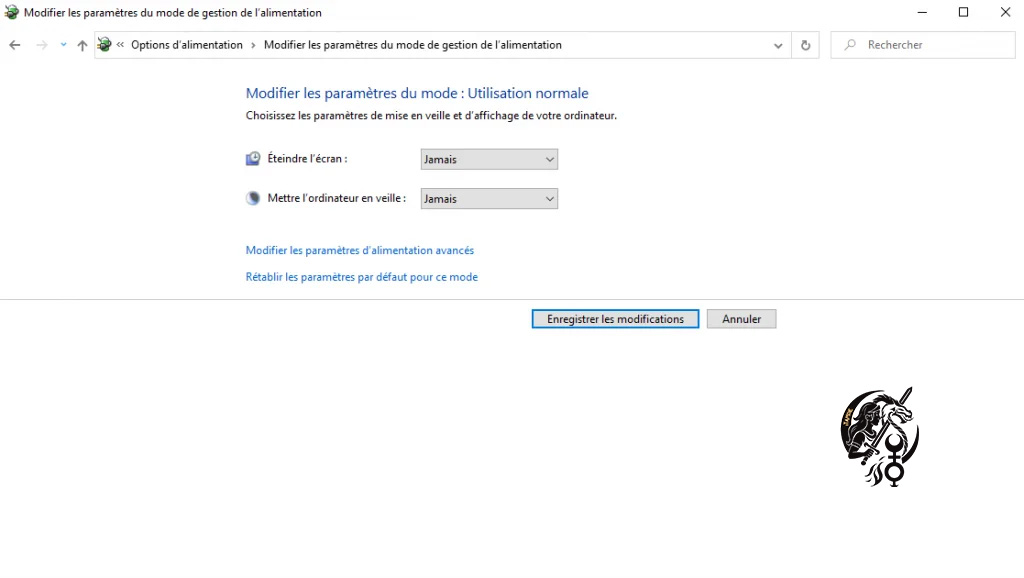
Confirm by clicking the "Save changes" button.
After performing these checks, try using sleep mode a second time. If the problem persists, you have no other choice: read on!
For those who are still experiencing problems and cannot find the reason why the computer won't go to sleep, they can simply click the "Restore default settings for this plan" button. By default, Windows 10 settings allow the computer to go to sleep, and restoring default values eliminates the scenario where your computer won't enter sleep mode.





0 Comments