


CSS3 allows you to fully customize the display of your lists. You will create really nice lists for your websites!
Defining the list bullet type
How to use them?
Remember in the HTML5 section with the ol, li, ul tags, you learned about numbered lists and nested lists. You know that CSS allows you to customize them. Simply use the CSS property list-style-type: disc for a filled circle, circle for an empty circle, and square for a square.
Examples:
.txt1 { list-style-type: disc; }

.txt2 { list-style-type: circle; }

.txt3 { list-style-type: square; }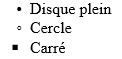
You can display numbers 1, 2, 3, 4, and also zero-padded numbers: 01, 02, 03, 04, or even Roman numerals in uppercase or lowercase with respectively:
.txt4 { list-style-type: decimal; }

.txt5 { list-style-type: decimal-leading-zero; }

.txt6 { list-style-type: upper-roman; }

.txt7 { list-style-type: lower-roman; }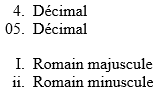
You can also use the alphabet with lists A, B, C, etc. or a, b, c, etc. with respectively:
.txt8 { list-style-type: upper-alpha; }

.txt9 { list-style-type: lower-alpha; }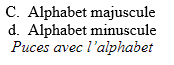
You have multiple predefined options with CSS to customize the numbering of your lists, or the bullets corresponding to your lists. You can use them easily as in the following example:
<ul>
  <li class="txt1">Filled disc</li>
  <li class="txt2">Circle</li>
  <li class="txt3">Square</li>
  <li class="txt4">Decimal</li>
  <li class="txt5">Decimal</li>
</ul>
Choosing an image for the bullet
You can also define an image for a bullet. This means you can use a small logo to represent your bullet, an image in PNG, JPEG, or GIF format, as you wish.
You use the list-style-image property by providing the URL, either the full URL with the domain name, or directly the image file, depending on how you have organized your website.
Example:
ul { list-style-image: url('puce.gif'); }With the example above, the image puce.gif will be used for all your bullets under the ul tag. You can declare your lists as in the example:
<ul>
  <li>An item</li>
  <li>Another item</li>
</ul>
The indentation option
You can also define the indentation of your list relative to other elements with list-style-position. outside is the default value, or inside as the alternative value.
.txt10 { list-style-position: outside; }

.txt20 { list-style-position: inside; }outside: this is the classic presentation of bullet lists, where all bullets are aligned in the same way. Conversely, the inside value allows you to indent only the first bullet; the others will be aligned with the default marker.
Conclusion
Customize your website to the fullest with CSS. This article showed you how your lists can use basic elements (small circles, etc.) but also any element you define yourself (bullets displayed with your own images).
There you go, now you can shine at parties...
We have put some courses on sale on the Itamde web school: online courses
You can also find us on YouTube:
Ici => https://www.youtube.com/channel/UCZ4dhshzpVbbRPVuL9TNH4Q
Ou ici => https://www.youtube.com/channel/UCQlKs3ToaL8IKRbXtwtFnyA


0 Comments